
Table of Contents
Multi-Factor Authentication (MFA)
Quick Guide to MFA
This guide is intended as a quick reference and describes only two methods (TOTP and paper TAN list).
For more details on other MFA methods and notes, such as how to manage your tokens in the portal, see the ** complete guide**.
What is MFA?
MFA provides additional protection for your university account. In addition to your password, you will need an additional security code (token).
This ensures your account remains secure even if someone knows your password.
Once set up, you will need an additional security code from your app or TAN list, or a hardware token, when logging in.
What do I need to set this up?
1) Your university login credentials (username (in the format ab1234) & password).
2) An authenticator app on your smartphone to scan the QR code OR the ability to view or print the PDF file.
Recommended app: PrivacyIDEA Authenticator
Alternatively, the following also work: Microsoft, Google Authenticator, FreeOTP, or 2FAS.
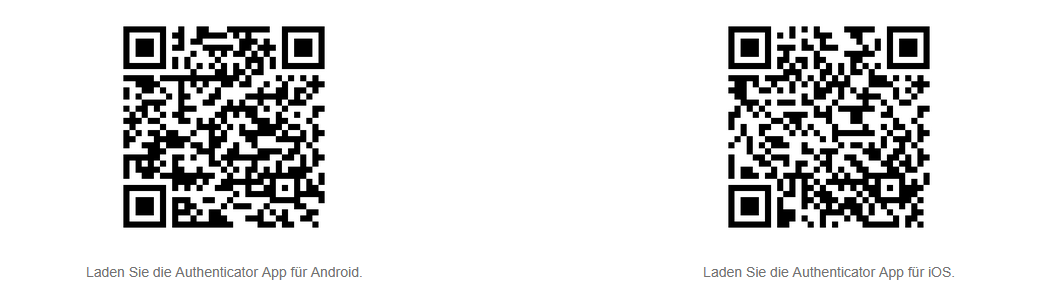
Scan the QR code here and download the app to your phone.
How do I set up my token for MFA?
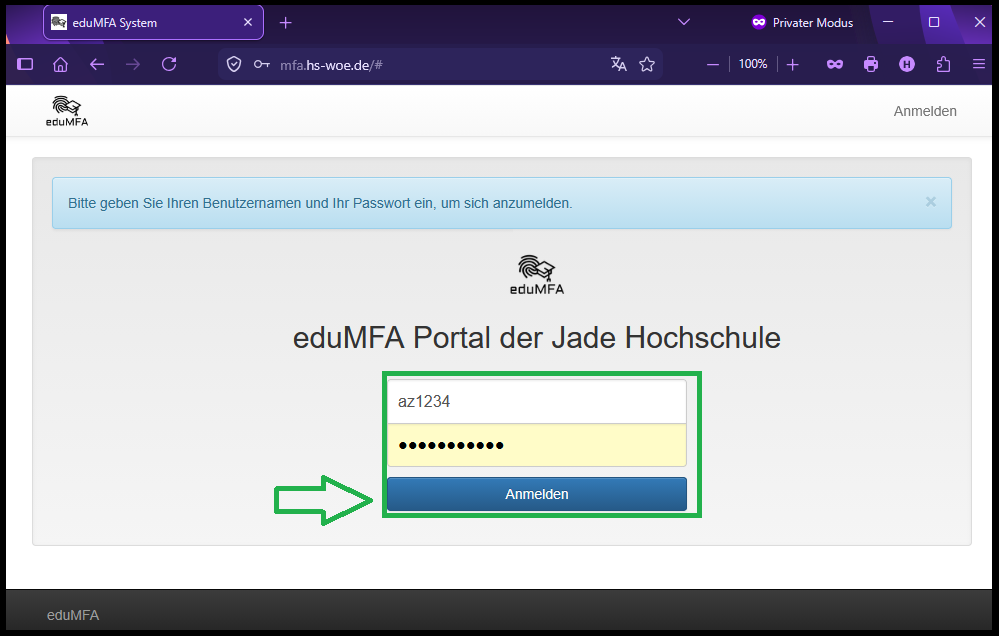
1. Open the following URL in your browser: https://mfa.hs-woe.de/
2. Log in using your university credentials (username & password).
3. Click on “Roll out token” on the left to set up your MFA method.
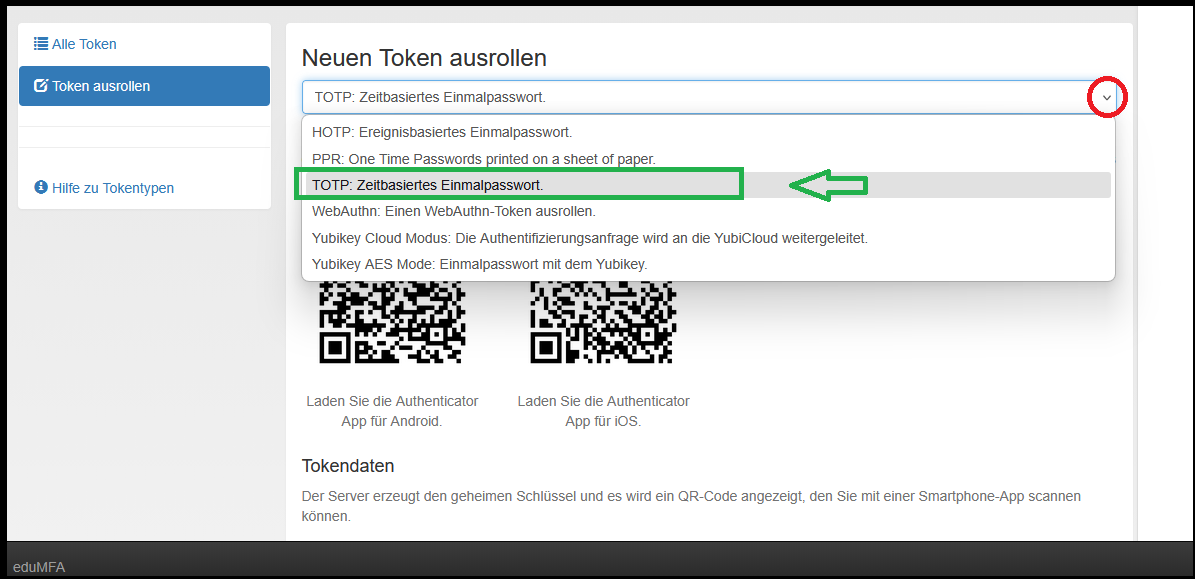
5. Select the desired token type.
I. TOTP with the Authenticator App
TOTP (Time-based One-Time Password) is a time-based one-time code that is regenerated every 30 seconds and is used for secure login as a form of 2FA.
Recommended!
- Select TOTP
- Enter any description for your token. Example: “App - Username”
- Click “Roll out token”.
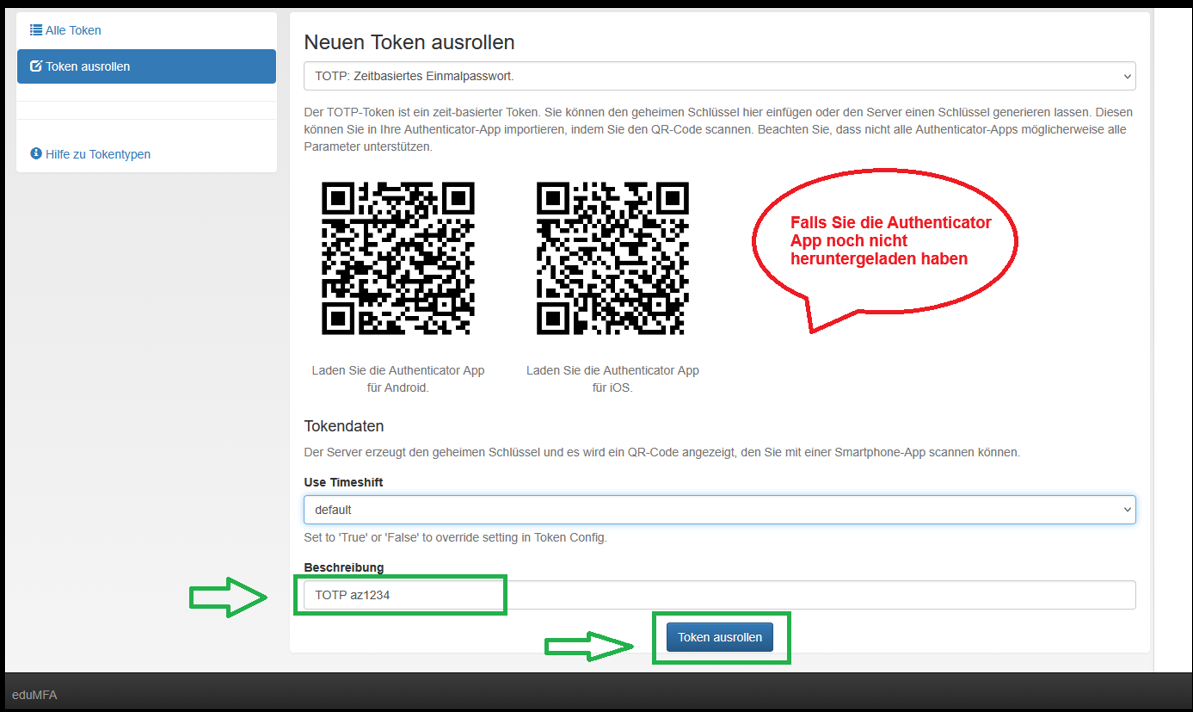
- Scan the QR code using your Authenticator app. The app will display a 6-digit code.
- If you are performing this process on your mobile phone and cannot scan the QR code, click on the blue word “here”
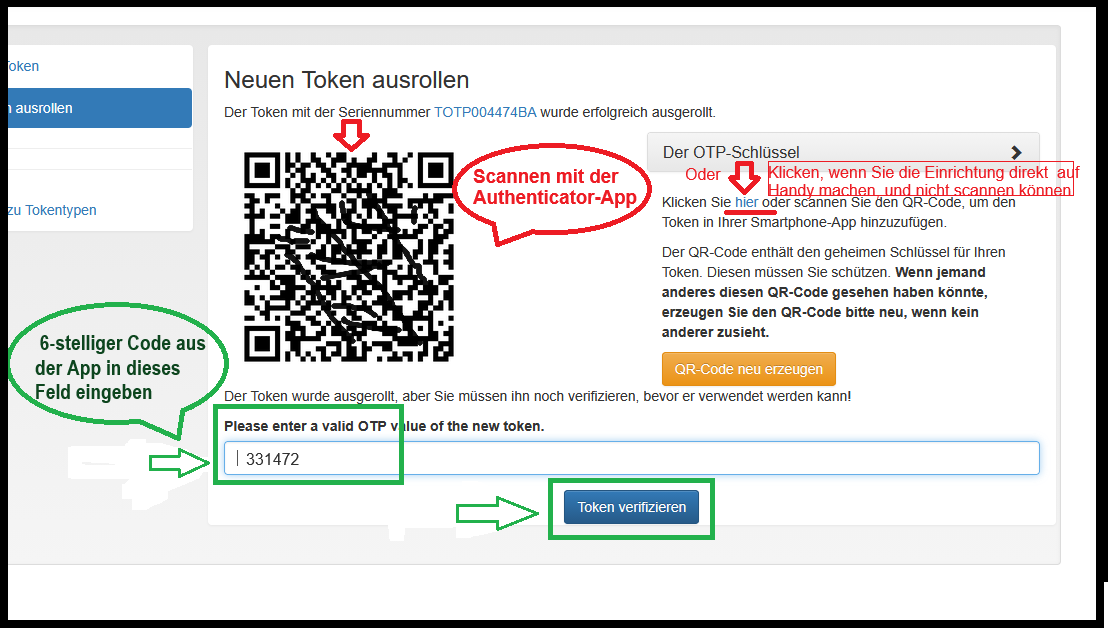
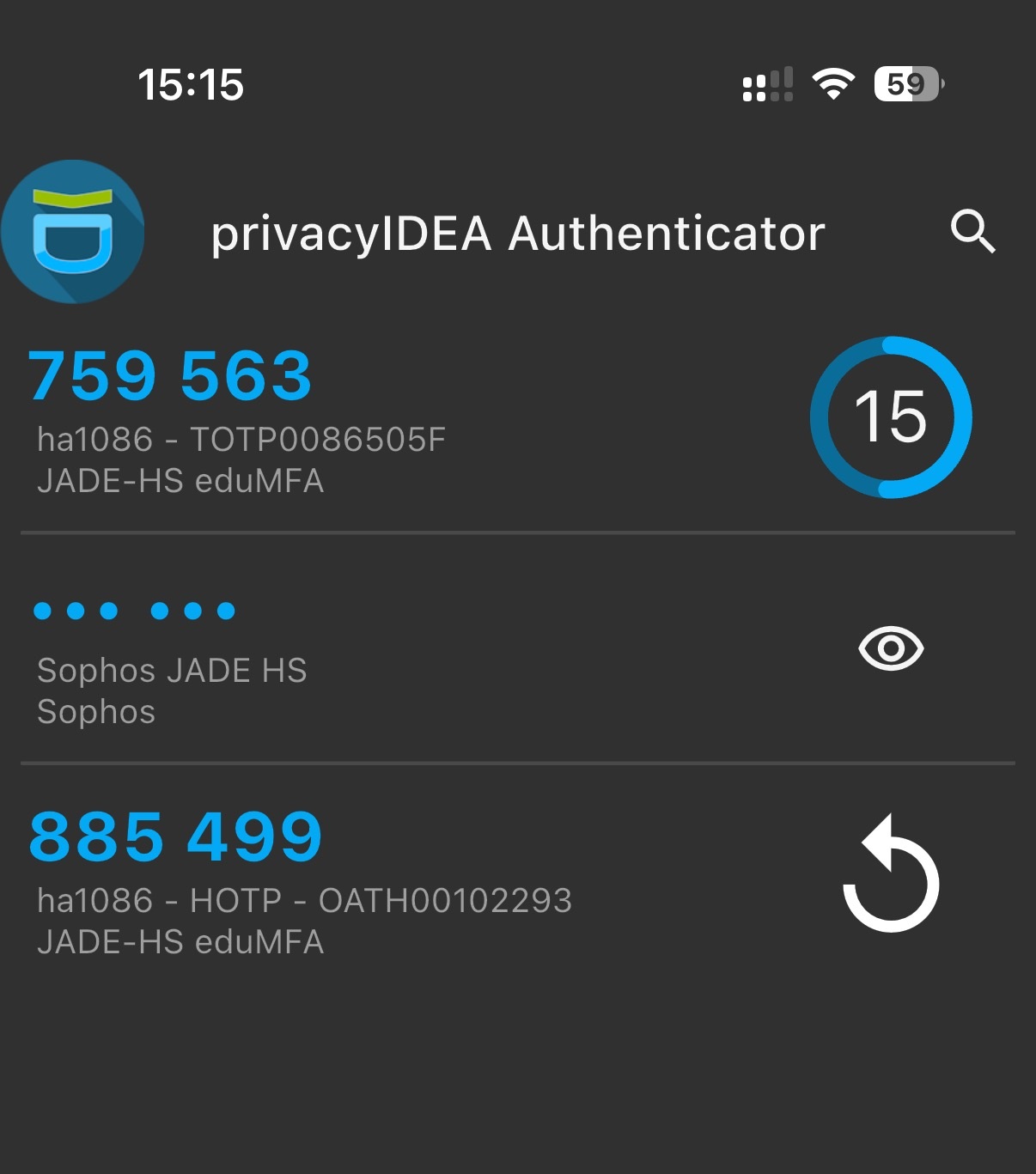
- Important: Enter this code in the field and click: “Verify token”.
Important: Your token will only work after clicking “Verify token”.
II. PPR (TAN List) as a PDF File
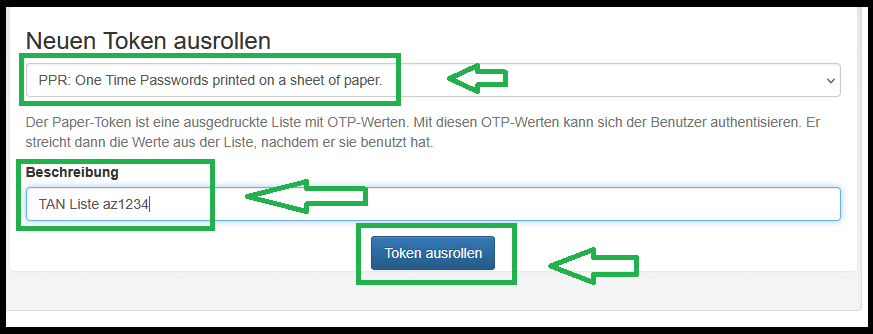
- Select PPR
- Enter a description (token type & username). Then click on “Roll out token”.
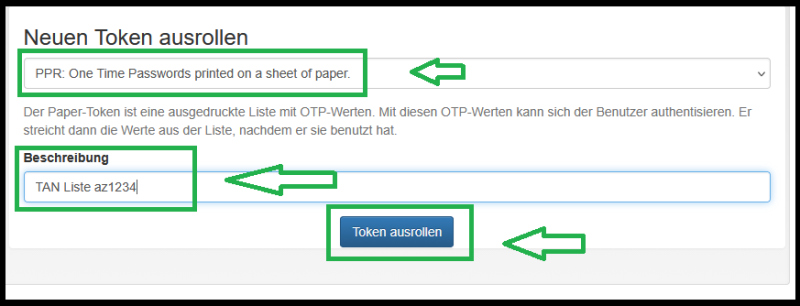
- Save or print the PDF file and keep it in a safe place.
- Important: Enter the first code (No. 0) in the field and click: “Verify Token”.
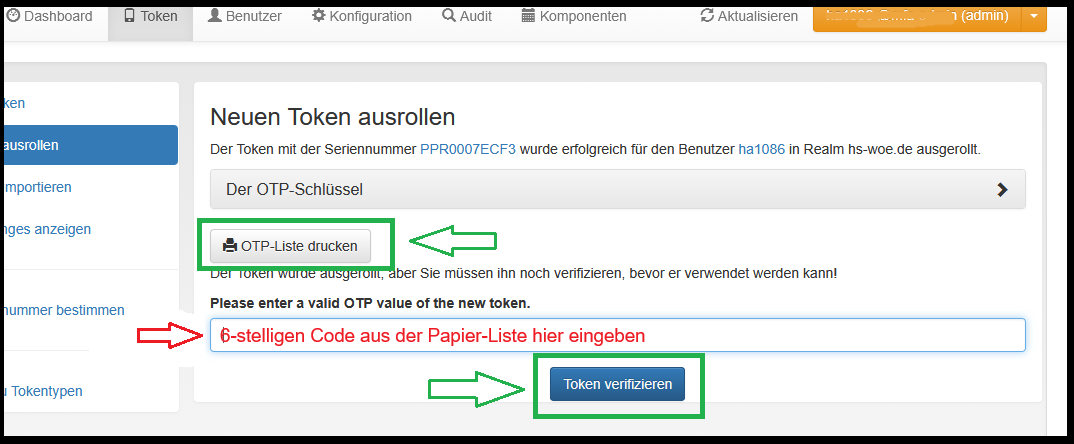
Important:
- The list CANNOT be downloaded again after closing the page.
- Your token will only work after clicking “Verify token”.
Important Security Notice:
- Treat the TAN list as you would a password.
- Keep it in a safe place and do not leave it lying out in the open on your desk or in other easily accessible locations.
- Do not share the list with anyone else.
III. Purchasing security keys as hardware tokens
If you do not wish to use a personal smartphone for MFA or require an additional authentication method, you can obtain a hardware security key through the HRZ.
The security key serves as a second factor for login and can be used as an alternative to or in addition to an authenticator app.
Orders are placed via the ticket system by sending an informal email specifying the cost center, hardware type, and connection type (USB-A or USB-C).
The following variants are currently available:
| Category | USB Version | MFA Method | Cost | Model |
|---|---|---|---|---|
| ** Display Token** | TOTP | €13 | 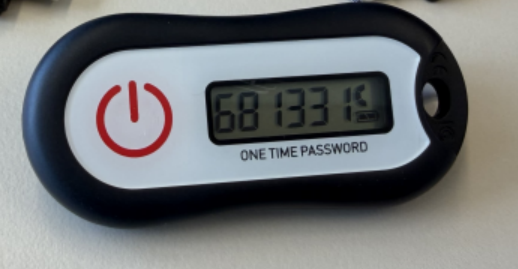 |
|
| Swissbit iShield2 Key | USB-A or -C &NFC | WebAuthn / Passkey | €24 / €28 | 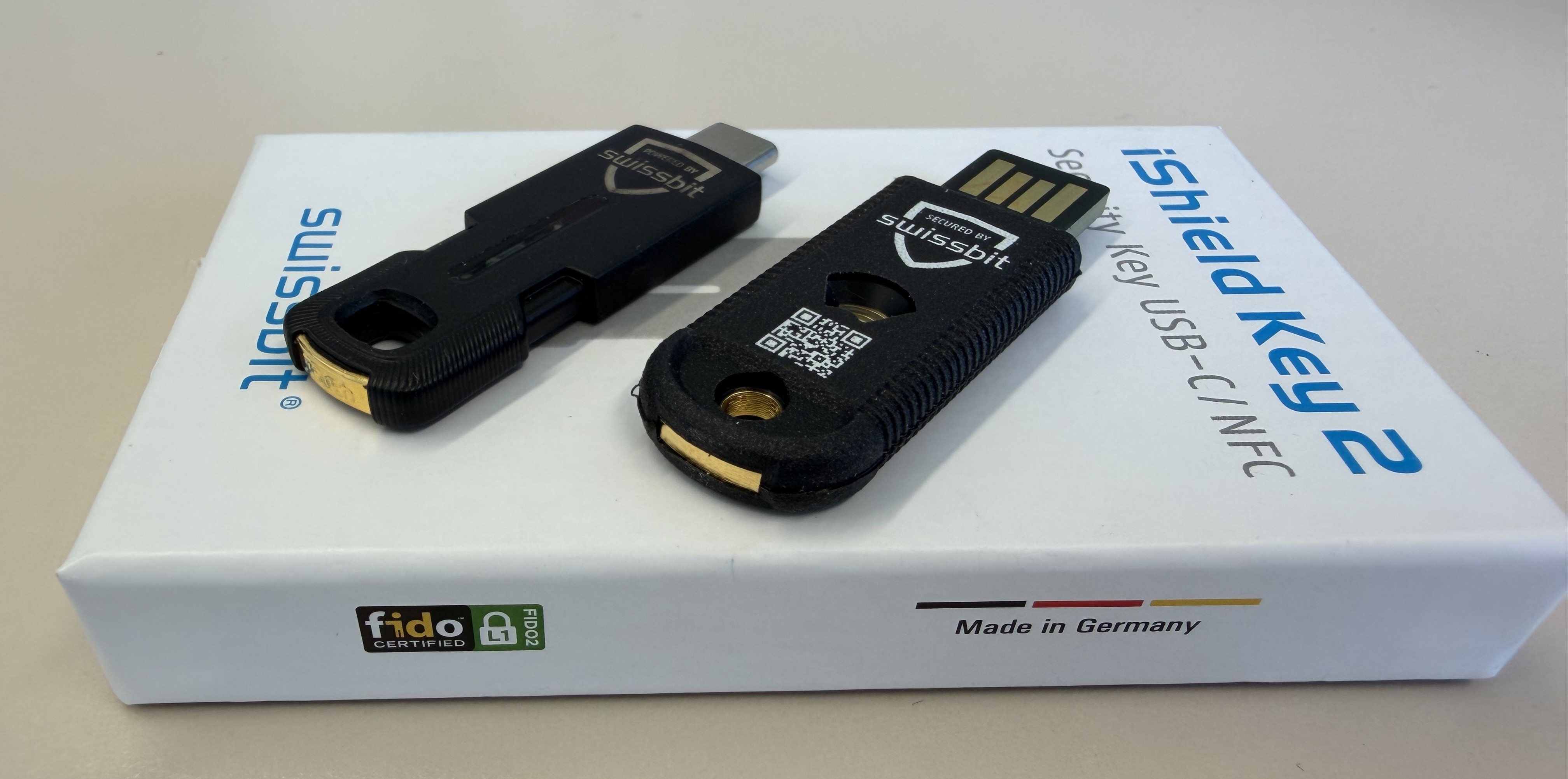 |
| Yubico Security Key | USB-A or -C &NFC | WebAuthn / Passkey | €35 | 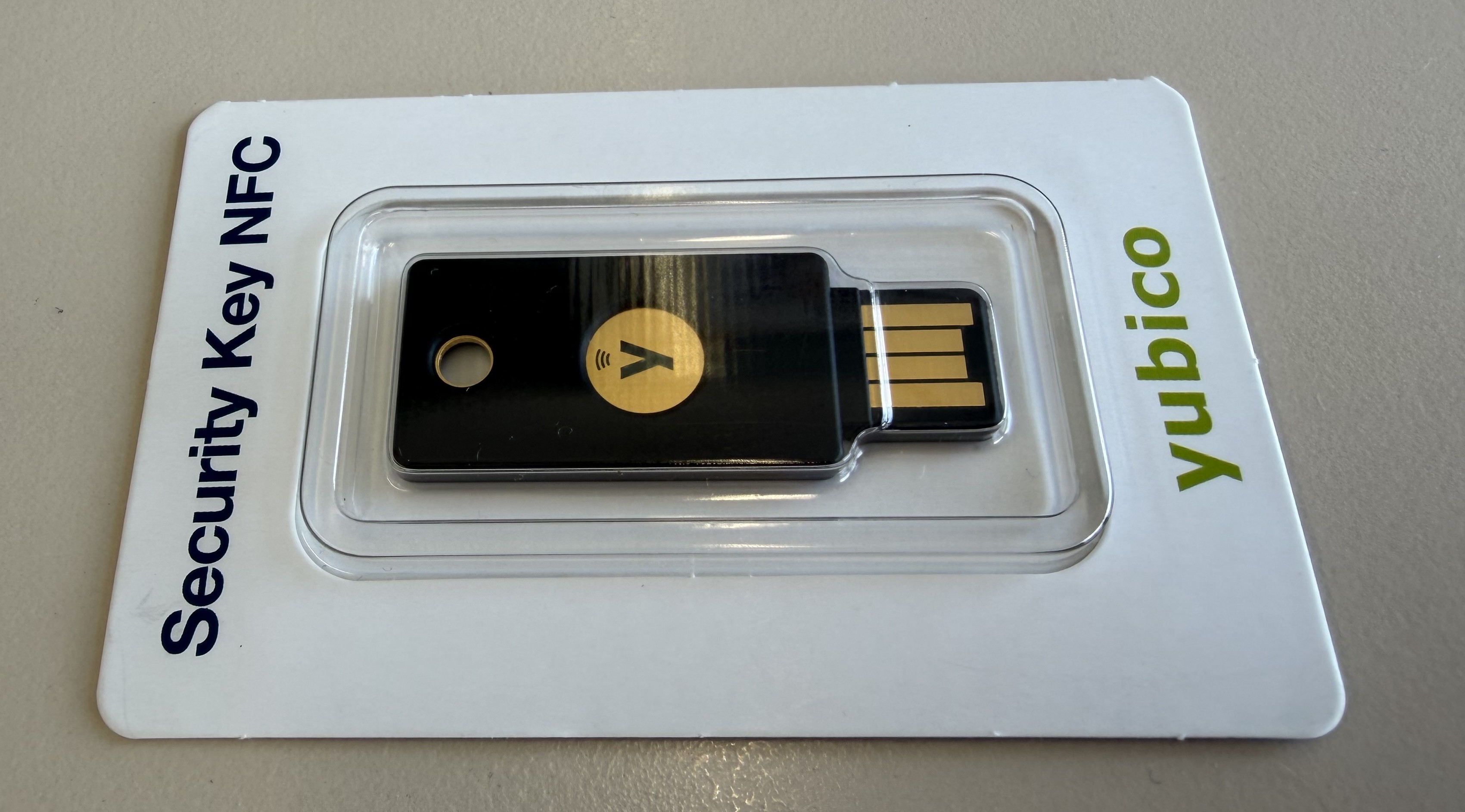 |
For more details, see here.
Note:
- The prices listed may vary slightly depending on the offer and time of order.
- After receiving the security key, it must first be set up and then registered in the eduMFA portal.
What's new when logging in with MFA
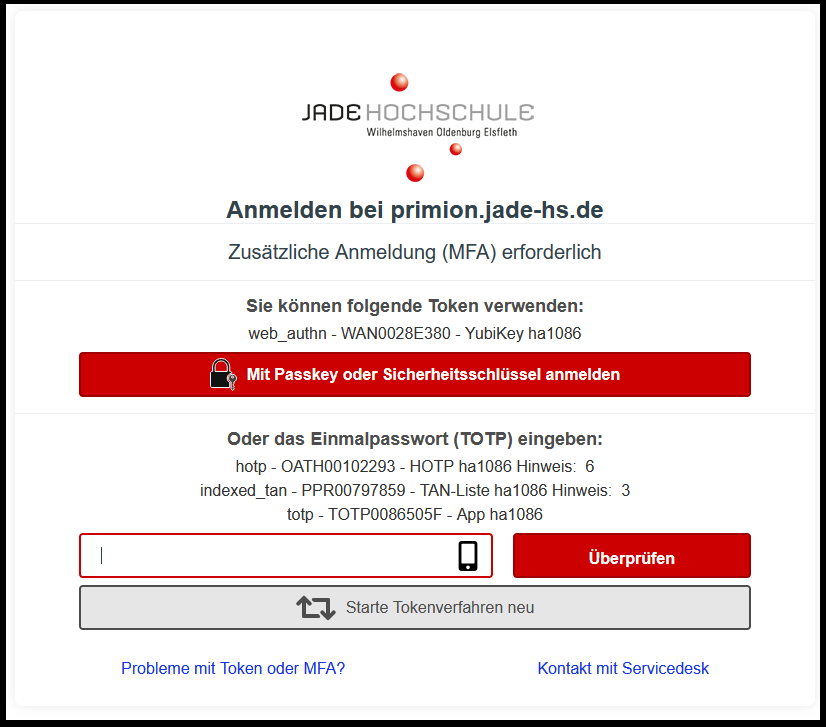
- After logging in with your username and password (just as you did before), a new login window will appear.
- Open your Authenticator app or your TAN list (paper code)
- Enter the 6-digit code from the app/list into the corresponding field
- Click on “Verify”
- You are then successfully logged in.
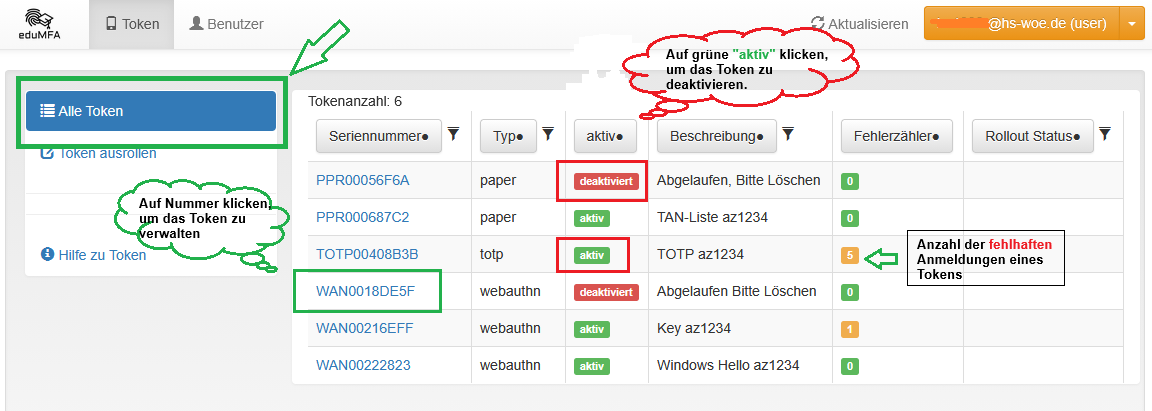
Manage tokens in the eduMFA portal:
Recommendation:
If possible, set up more than one MFA method.
This way, you can still log in if your cell phone is lost or unavailable.
You can find further instructions here:
Lost your phone or token?
If possible: Immediately deactivate the lost token in the portal.
If no other token is available, please contact the HRZ MFA Service immediately.
Support:
Are you having problems with your token, do you need help, or would you like to send us feedback?
Then you can submit a ticket via the Ticketsystem or send an email to one of these addresses: