
Inhaltsverzeichnis
Wired Access
Note: **The following settings should only be configured if no Wi-Fi connections are available.
If you plan to use a wired connection, please consult with us beforehand so that we can explore possible alternatives.
If these changes are made independently and without prior consultation, we cannot guarantee support for any resulting issues in the future. **
Microsoft Windows
New devices in the PC network will in the future be delivered fully configured by the HRZ; no configuration is required here.
Devices currently in operation must be configured as follows:
1. Start → Services (type) → Automatic Configuration (Wired)
2. Startup type: Automatic
3. Service status: Click the “Start” button once; the service status will then change from ‘Stopped’ to “Running”
4. Windows 11: Start → Control Panel (type) → Network and Internet (top right: View: Categories) → Network and Sharing Center → Change adapter settings
- Ethernet network adapter → Right-click → Properties

- Authentication tab (appears only after the “Automatic Configuration (Wired)” service has been started)
- Enable IEEE 802.1x Authentication: Enable
- Select a method for network authentication: “Microsoft: Protected EAP (PEAP)”
- Save credentials for this connection for each login: Disable
- Fall back to unauthorized network access: Disable

- Click “Settings”
- Verify server identity using certificate validation: Enable
- Connect to the following servers…: Disabled
- Trusted Root Certification Authorities
- HARICA TLS RSA ROOT CA 2021: enabled
- HARICA TLS ECC ROOT CA 2021: enabled
- (If there are multiple certificates with the same name, check all of them)
- Select authentication method: “ Secure Password (EAP-MSCHAP v2)”
- Enable fast connection recovery: disabled
- Disconnect if server…: disabled
- Enable identity protection: disabled

Note: The following fields must be enabled only for domain devices. For personal devices, only the text in bold applies
- Click “Configure…”
- Use your own Windows login name automatically…: enabled
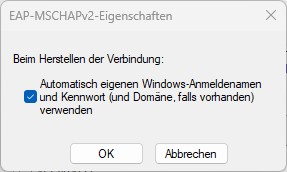
- Click “OK”
- Click “OK”
- Click “Advanced Settings…”
- Specify authentication mode: User authentication
- Save credentials → Enter username (in the format: ab1234@hs-woe.de) and password
- Specify authentication mode: User or computer authentication
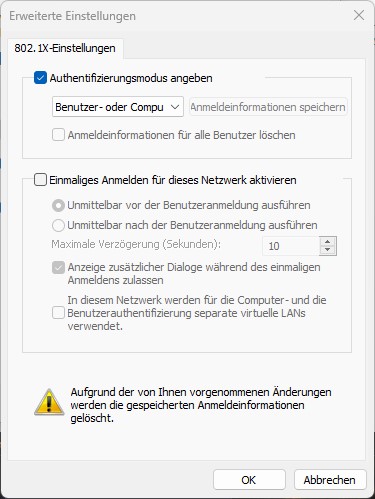
- Click “OK”
- Click “OK”


Apple macOS
Ubuntu Linux
- GNOME → Settings
- Network → Wired - Settings (gear icon)
- Security tab
- 802.1x Security: enabled
- Authentication: Protected EAP (PEAP)
- Anonymous Identity: <no entry>
- CA Certificate: (none)
- CA certificate not required: enabled
- PEAP Version: Automatic
- Authentication: MSCHAPv2
- Username: Domain login (Format: ma1150@hs-woe.de)
- Password: <Your password>