
You are not allowed to perform this action
en:tp:vpn:eduvpn
eduVPN
We offer EduVPN as our VPN solution. This is a type of VPN management client that allows you to connect to our VPN solution easily and seamlessly. To use the VPN, you must download the client for your operating system; the program is available for all major systems.
Explanation of VPN - Virtual Private Networks (BSI)
The user interface is similar across all systems and offers the same services regardless of the device type.
To establish a connection, you need an MFA token (multi-factor authentication), which you can create as described in the MFA instructions.
To establish a connection with the VPN, follow these steps:
Step-by-step instructions:
- You must first set up educationMFA (multi-factor authentication): MFA instructions
- Download the eduVPN program: EduVPN Client
- Select your operating system (Windows, Apple, Linux) and download
- Install the app
- Open the app on Windows via “Start/eduVPN”
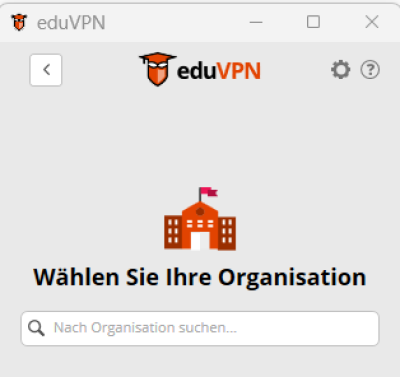
- Search for Jade University of Applied Sciences


- In the Organization Access tab, click on Jade University of Applied Sciences Wilhelmshaven/Oldenburg/Elsfleth
- You will be redirected to the login page
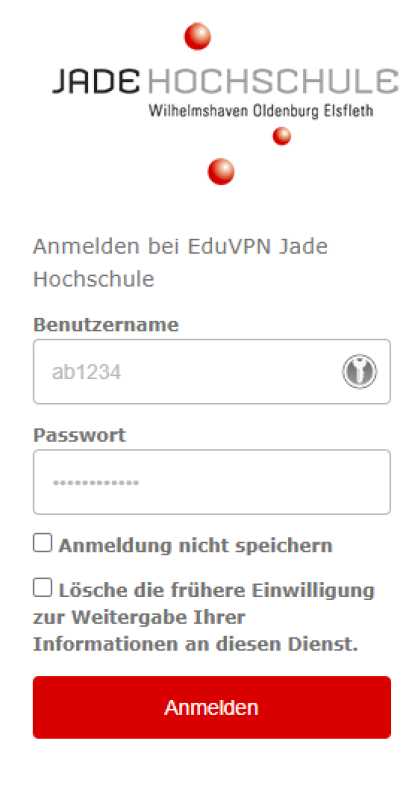
- Enter your usual login credentials (format: ab1234)
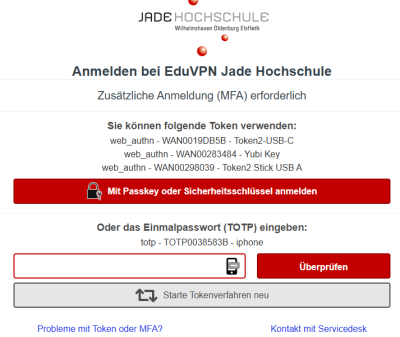
- Confirm via MFA login
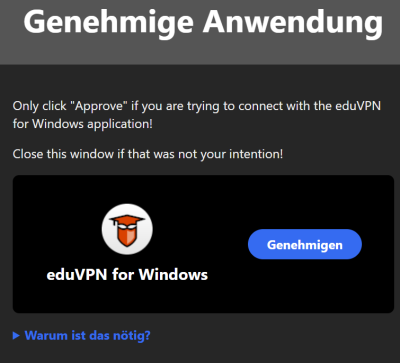
- Approve access from eduVPN
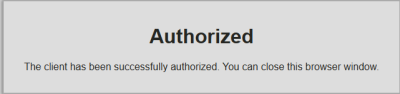
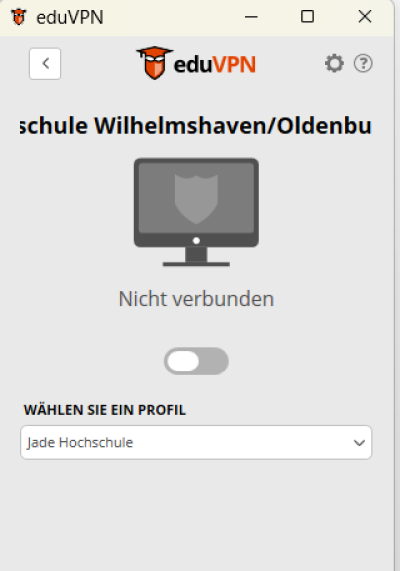
- After successfully logging in, profiles will be displayed in the eduVPN app
- Profile: Jade University of Applied Sciences
- Default access profile
- In this case, all your network traffic is routed through Jade University
- Tap the gray button to connect and wait a moment
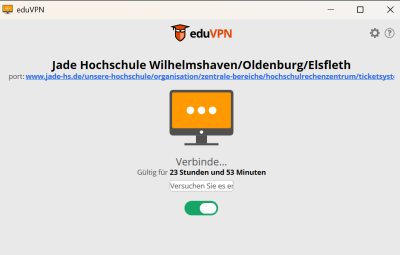
- Successful connection in the taskbar:
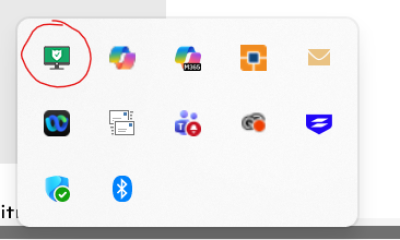


en/tp/vpn/eduvpn.txt · Last modified: by an1198